Inside Donskul · · 3 min read
Meet Donskul: a tour of your school dashboard on day one
Every school owner knows that Monday feeling. You walk in, and before you've dropped your bag, three people want answers. How many children came today? Has the JSS 1 parent paid? When is the inter-house sports again? The answers are somewhere, in a register, a notebook, the bursar's head.
Donskul, our school management software, is now live, and this post opens a series called Inside Donskul. Over the coming weeks we'll show you one part of it at a time, using real screens from our demo school, Greenfield Academy. We'll start where you'll start: the dashboard.
The first thing you see
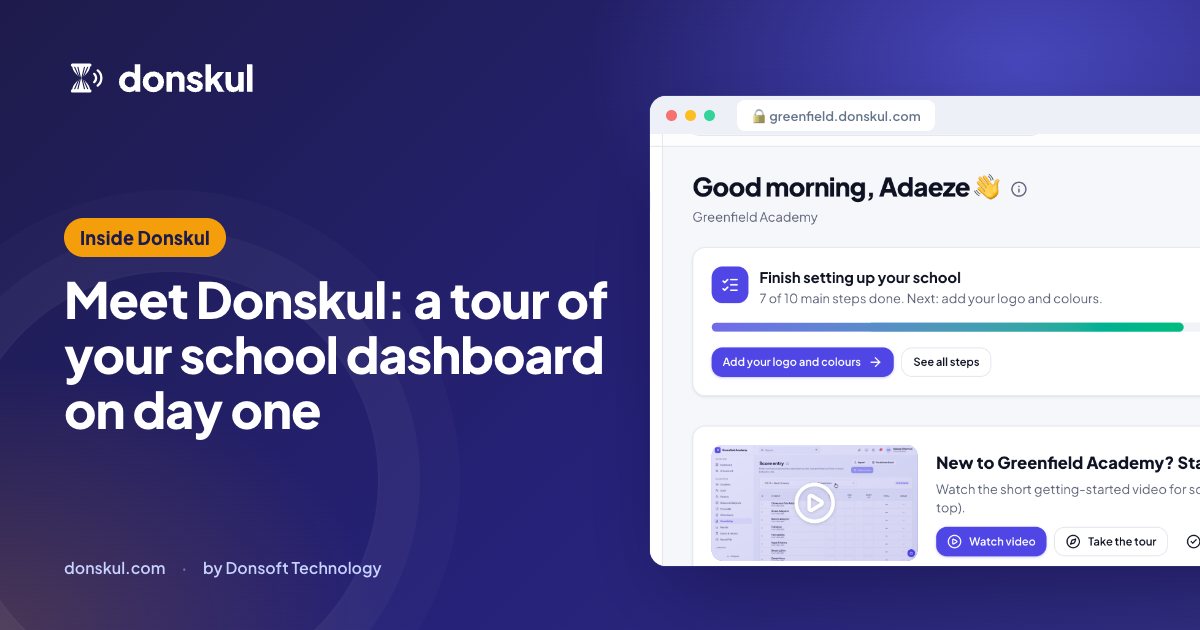
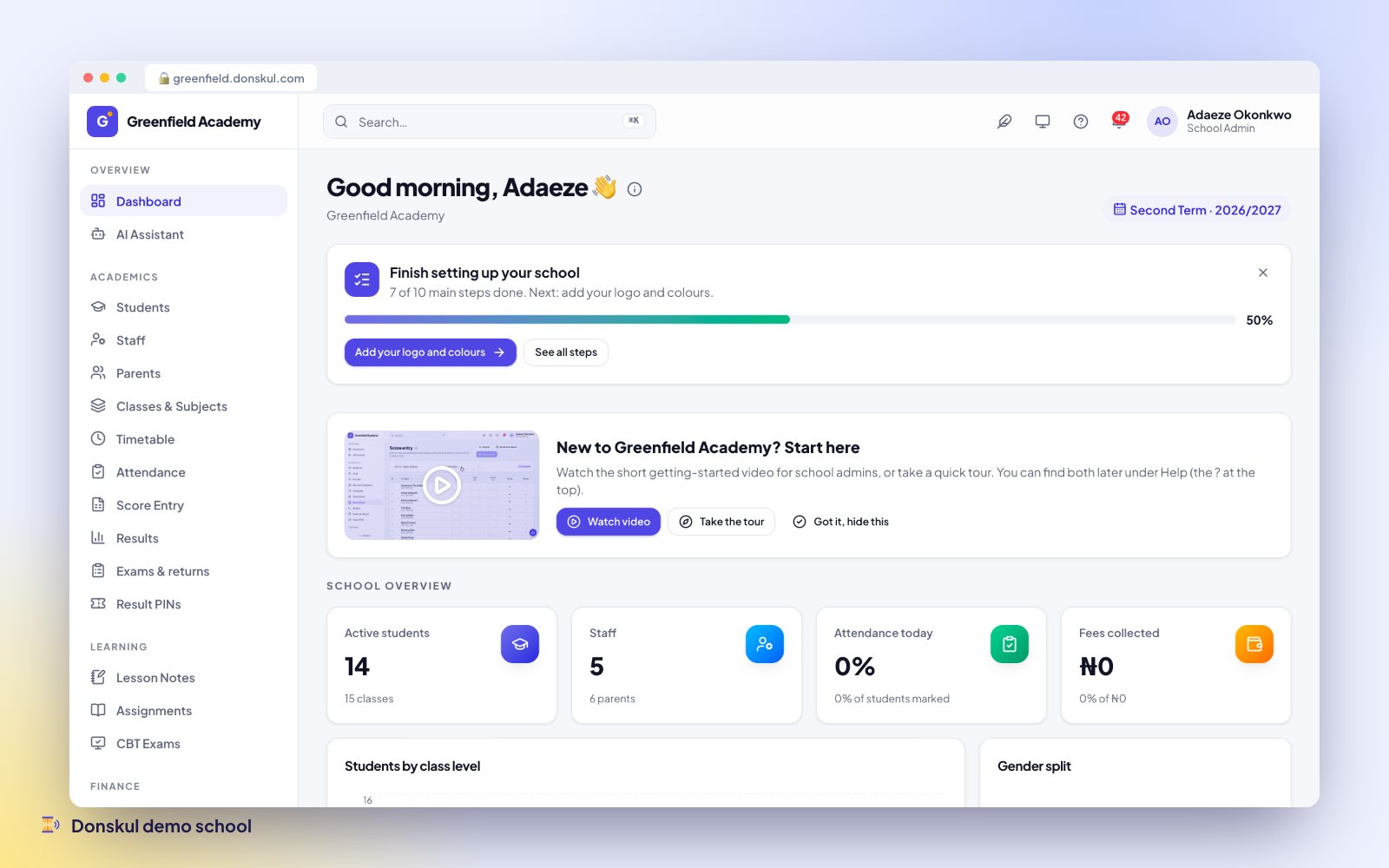
When you log in, Donskul greets you by name and shows the current term and session. Right under that is a card called Finish setting up your school. It tells you how many of the main setup steps you've done and suggests the next one, for example adding your logo and colours. You don't have to guess what comes next.
There's also a short getting-started video for school admins and a quick tour. If you skip them, you can find both later under Help, the question mark at the top.
Your school at a glance
The School overview cards give you four numbers that matter every day:
- Active students, and how many classes they're spread across
- Staff, and how many parents are linked
- Attendance today, as a percentage of students marked
- Fees collected for the term
Below that you'll find a chart of students by class level, from Nursery 1 to SSS 3, a gender split, and an attendance trend for the last 14 days. If attendance drops after a public holiday or during the rains, you'll see it here before anyone tells you.
The dashboard also lists recent admission applications, upcoming events, recent payments and a monthly collections chart. Quick action buttons sit close by: add a student, take attendance, compute results, set up classes and subjects, raise invoices, or send an announcement.
What parents see
Parents get their own login, and they see only what concerns their children. On the My children page, each child has a card with attendance, their latest result and position in class, and fees due. Three buttons sit under each card: Results, Attendance and Pay fees.
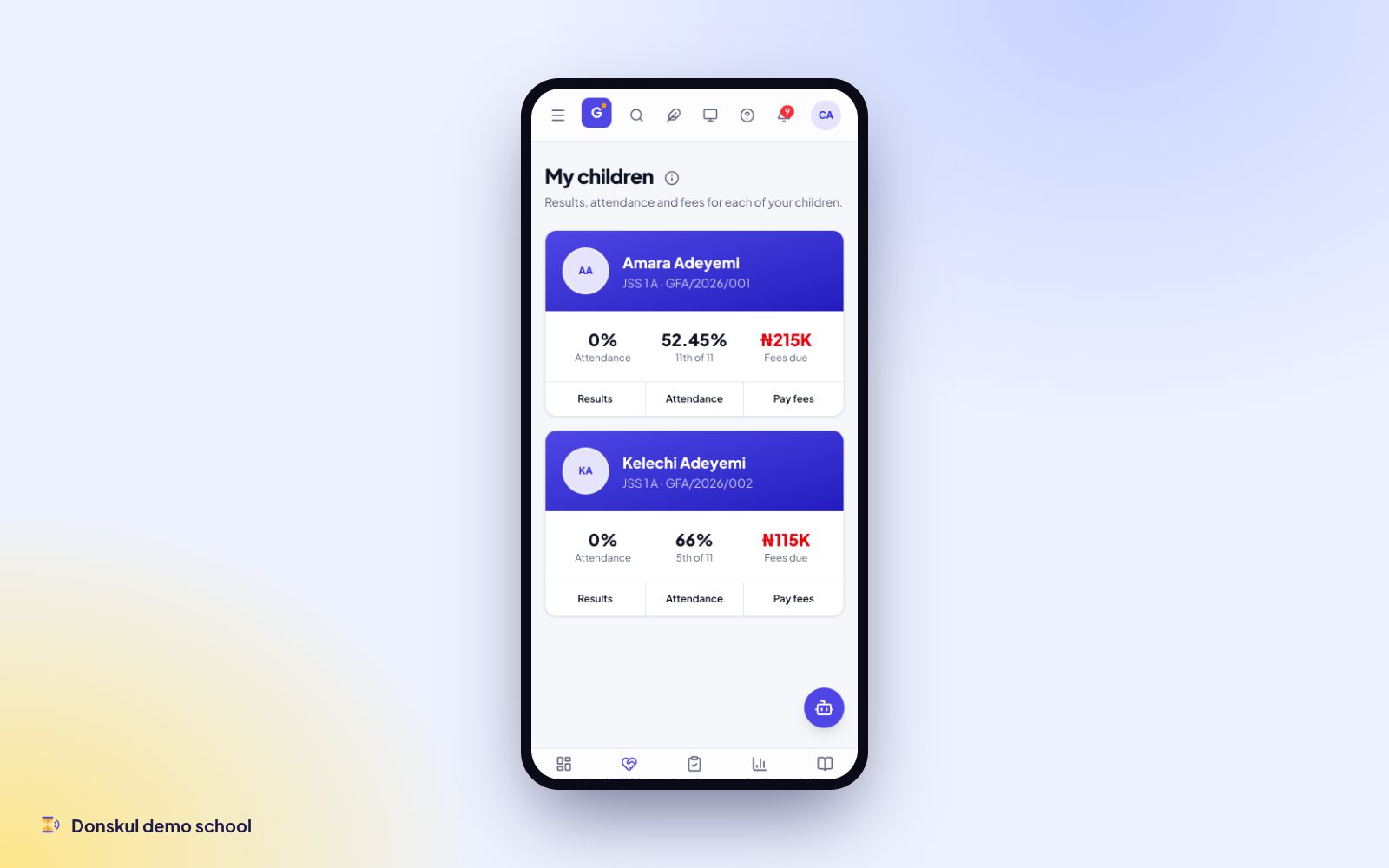
A mother with two children in the same school sees both on one screen. No more calling the office to ask what's outstanding.
Getting started
- Start a free trial at donskul.com. No card is needed.
- Follow the setup card on your dashboard, one step at a time.
- Add your classes and students, or import them from Excel.
- Invite your teachers, bursar and parents.
Who it's for
The proprietor gets the big picture without chasing people. Teachers take registers and enter scores from their own login. The bursar sees fees and payments in one place. Parents finally have answers on their phone.
That's the front door. Over the coming weeks we'll open the other rooms: attendance, timetables, admissions, the AI assistant, result PINs and more. Come along.

Run your whole school on Donskul
Results, CBT, fees, payroll and parents in one app that works on any phone. Free trial, no card needed.
Ready to take the next step?
Start your free trialEnjoyed this? Follow Donsoft on Facebook for new articles and Donskul updates.